

17. Exercise: connection router - firewall hardware with an ADSL RJ45 modem.
1. Modem ADSL Tornado Copperjet 812 - 2. Router - Firewall Hardware - Switch - 3. Parameter setting network and Internet of the connected PC - 4. Log of a firewall Internet.
Without practice, the theory is not useful. Without theory, the practice becomes quickly incomprehensible. Connection sharing exercise resumed the connection and setting up a router - hardware firewall with a modem ADSL RJ45 (a router used as bridge, simple ADSL modem), all connected to an Ethernet network. This secure professional installation is restricted to businesses. INTERNET training takes up several chapters on the INTERNET connection sharing (methods, USB modem, router / modem).
IIf you buy a modem directly to your ISP, no problem, it is configured with a specific file. On the other hand, if you purchase a product outside, you practically reinvent the wheel, without technical support. The tips given here will be (I hope) to facilitate life for other ADSL connections. Internet settings given below are specific to the access SKYNET (Belgium) provider.
1. modem - router ADSL
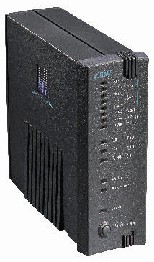 The used here DSL RJ45 modem integrates a router. Two models of connection are available: in Ethernet
network.
The used here DSL RJ45 modem integrates a router. Two models of connection are available: in Ethernet
network.
- Either network connection with a HUB (or switch). The device is being used as ADSL router and directly enables Internet connection sharing.

- Either connection directly on a PC equipped with a card network Ethernet 10 (or 100). In this case, the device is used as ADSL modem.
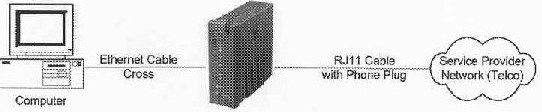
We will use a similar to the second solution connection. The second aircraft (a firewall - router Hardware) below will serve him router and router Tornado will be used in "bridge mode" (eventually simply as modem). Notice the difference in level of the RJ45 cable connection. In the case of a PC, using a cross cable RJ45. In our case, as it is a router and not to a HUB, we will also use a crossover cable.
TORNADO modems are solid but have systematically complex documentation and... a configuration using a specific software. This often causes problems with the new operating systems (incompatible programs). The ADSL modem must be connected directly to a network adapter to be configured. The installation of the program is available to any amateur computer. After installation, there are 2 software: a configuration and a monitor. You can check the version monitor hard firmware.
As his model can be set that in direct connection, let's start with this one.
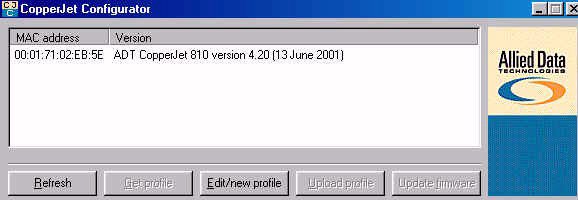
The use of this modem requires loading a profile (a specific file). Click on Edit/new profile to create such a profile. Once the file is saved, the following window appears. Here are all the modes of use of this modem. We will see them in turn, with each time the use and configurations.
1.1. bridged mode (bridge)
This bridge allows the connection of the modem as a gateway. In this mode, we don't use that modem to the router, all other functions are disabled (login and password, NAT, prospective firewall,...). In the window, we configure:
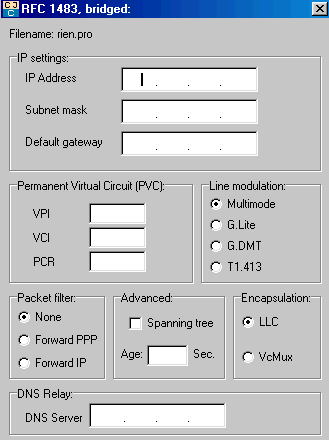 1. the address Lan IP: the user-defined class 3 IP addresses or 192.168.0.0. to 192.168.255.255. This corresponds to the range of internal network addresses. For example decide
192.168.1.2. We will resume this address in all the following
cases.
1. the address Lan IP: the user-defined class 3 IP addresses or 192.168.0.0. to 192.168.255.255. This corresponds to the range of internal network addresses. For example decide
192.168.1.2. We will resume this address in all the following
cases.
2. Subnet mask. In the majority of cases, this mask is 255.255.255.0.
3. The gateway address is the address of the gateway, typically the router: take 192.168.1.1.
4 VPI / VCI. First problem, these data are rarely provided
.5 PCR (Peek Cell Rate). This number must be here between 0 and 500,000. This represents the maximum speed, I hit 500000. Note that in another router, the default value was 864000.
6. Packet Filter: filtering data, or none (default), or lets only PPP (Forward), or only the IP packets. Leave default in the majority of cases.
Leave the other default settings.
7. DNS relay must be the TCP/IP address of the modem in the case of bridged configuration, but it is not necessary in this mode
1.2. Routed mode, modem installed on a HUB.
This mode allows to configure a bridge between a
LA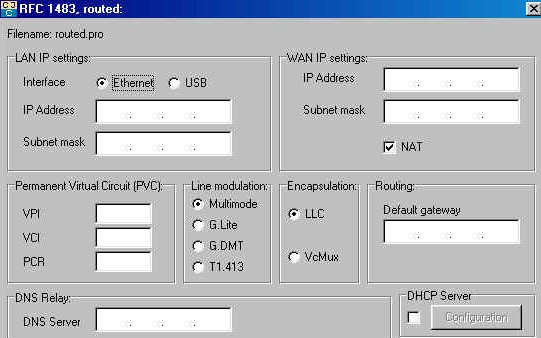 N and a WAN with fixed IP
address.
N and a WAN with fixed IP
address.
The settings are virtually identical, except that You must specify the Wan (Internet) address and its subnet mask. In the case of an ADSL connection with fixed TCP/IP address, this is the mode of work.
Alternatively, you can use in this case the DHCP server modem (configuration addresses automatic TCP/IP). The data are identical to the bridged for the rest mode.
1.3. PPPoA Mode.
This PPPoA and PPPoE mode are used to a direct Internet connection (cases where the modem is connected directly to a network adapter. In Europe, the PPPoE mode and PPPoA can all two people employed. This depends on the service provider. In theory, the PPPoE mode is used by modems RJ45, PPPoA for the USB modem.
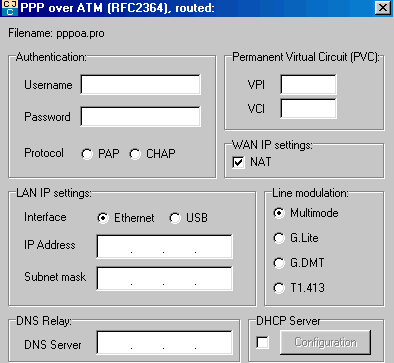 A big difference compared to previous modes, you must here type the login and password provided by the ISP. As a reminder, the login is loginfourni@FOURNISSEUR.
- In the case of skynet, it will be of type gv52222@SKYNET
- The password is provided by the access provider.
- Protocol PAP / CHAP is to try for each provider.
- VPI/VCI is specific to the provider: often 8/35
- NAT (address translation) must be checked when your LAN address differs from your WAN address, which is the case in the large majority of cases.
- The program requests here the type of connection. In our case, it is Ethernet and we type the address and the usual mask: 198.162.1.2 - 255.255.255.0. This address is required for subsequent configuration (case of a direct connection). Type the DNS relay address. It must be the address in DNS in the network locally (on each station), but it is not mandatory to enter one, particularly in operating systems 2000, XP and higher which include it automatically. We will see DHCP server later.
1.4. Mode PPPoE (Not To Point Protocol Over Ethernet), mode by defect in Europe for a direct connection.
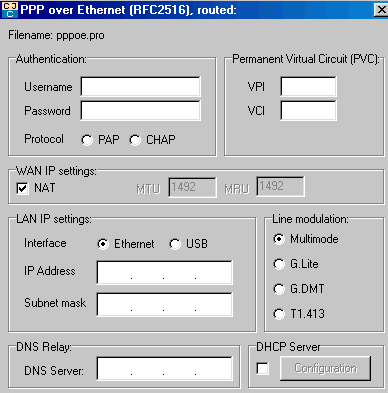 The configuration is identical to that PPPoA, except the NAT is of
notched and that protocol PAP/CHAP does not exist, which is
logical.
The configuration is identical to that PPPoA, except the NAT is of
notched and that protocol PAP/CHAP does not exist, which is
logical.
1. Username, for example gv52222@SKYNET
2. Password provided by the internet provider or supplier of access
3. VPI/VCI: 8/35, following the supplier of access (more often country).
4. NAT with notching.
5. Ethernet in our case, always address 198.162.1.2.. and 255.255.255.0
6. DNS relay. This one must be the address provided in DNS in the local area network (on each station), but it is not obligatory to type one of them, in particular in the operating systems 2000, XP and superiors who include it automatically.
1.5. Other modes: PPTP and IPoA
These are hybrid modes that I do not see.
1.6. With the final one.
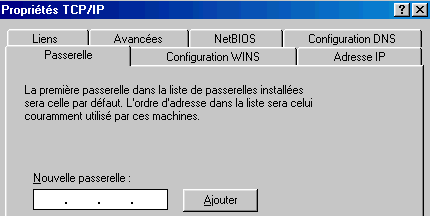 In the case of a router connection, the used mode is bridged, in the case of a HUB connection or live, the connection mode is PPPoE. The only difference between a direct connection and a connection HUB is linked to the gateway that can be populated in the configuration of the PC (this is not always necessary). In settings, select TCP/IP on network adapter and type TCP/IP address of the gateway, in our case 200.1.1.1. (don't forget to click on
add).
In the case of a router connection, the used mode is bridged, in the case of a HUB connection or live, the connection mode is PPPoE. The only difference between a direct connection and a connection HUB is linked to the gateway that can be populated in the configuration of the PC (this is not always necessary). In settings, select TCP/IP on network adapter and type TCP/IP address of the gateway, in our case 200.1.1.1. (don't forget to click on
add).
And so much for the modem. This part will suffice for all connections ADSL modems. For small modems, hold at least the VPI/VCI parameters.
1.7. Configuration DHCP server
This allows you to automatically assign TCP/IP addresses to stations by the modem (attention to the OS 2000, XP and higher). For the most common cases, this is not necessary.
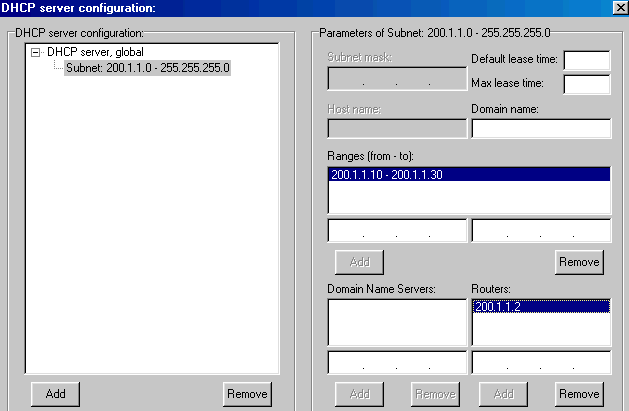
We find the DHCP server address, ending with 0 with always Sub mask 255.255.255.0. The server address is 198.162.1.0. As a reminder, the DHCP allows a device to provide to all devices connected on the network an IP address.
Range determines the range of address that will be assigned to stations. In our case, 198.162.1.10 to 198.162.1.30The router address is necessarily given to the modem, or 198.162.1.2 in our case.
2. Router - firewall Hardware - Switch 4 ports.
2.1. Introduction.
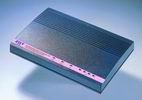 The router - firewall is provided by the Zero One Technology firm. This model is equipped with a Switch 4 ports, a connection to modem ADSL RJ45 (hence the use above of Copperjet 812), a router and a built-in hardware
firewall.
The router - firewall is provided by the Zero One Technology firm. This model is equipped with a Switch 4 ports, a connection to modem ADSL RJ45 (hence the use above of Copperjet 812), a router and a built-in hardware
firewall.
Several models of this type exist in virtually all brands. Some with integrated modem, others without,... the choice is wide enough.
These devices are configured by TELNET or a web interface, directly by typing the address of the device in the address bar of Internet Explorer. In the above device, you must configure your TCP/IP PC connection to get an automatic TCP/IP address or at least part of the same group or 192.168.1.X knowing that by default the router address is 192.168.1.1. In the INTERNET Explorer connections settings, use no proxy at this point, otherwise you won't have access to the router (or otherwise, use "not for local addresses" with the address of the router in option).
After typing the address of the device in the bar, the connection is done with a login and a device-specific password.
2.2. ADSL Configuration
Let us start by configuring connection ADSL.
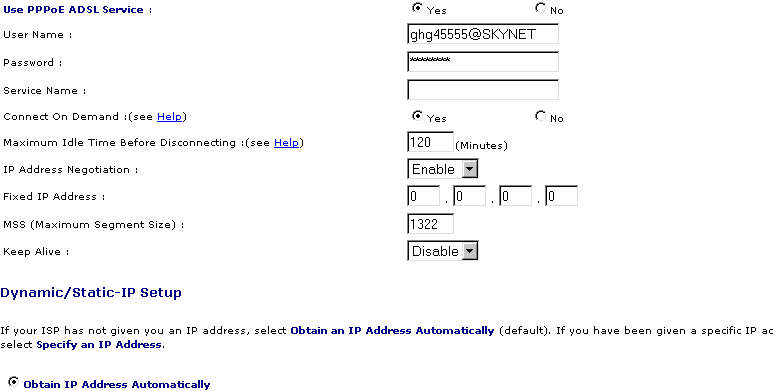
- Use PPPoE Yes (Inevitably).
- Username and password are provided by the supplier of access.
- The Name Service is sometimes provided by the supplier of access, if not, do not put anything.
- "Connect one demand" makes it possible to cut connection (and of reconnected) after 120 minutes, but less is clearly advised.
- If subscription ADSL envisages a fixed address TCP/IP Internet, it must have returned in "Fixed Address".
This second part makes it possible to configure the TCP/IP.
Either your address TCP/IP Internet is provided automatically by the supplier of access (Obtain IP address Automatically), or it fixed and is provided by this one.
Primary parameters DNS and secondary are provided by your supplier of access. Those above are those of Skynet (Belgium ISP).

2.3. Configuration IP/Lan
This part makes it possible to configure the router on the internal network. We provide him an address (here 192.180.1.1.) and a mask of sub-network (255.255.255.0)
The address "Defect gateway" is generally that of the router (Lan IP address) and must be indicated in the configuration network of each PC
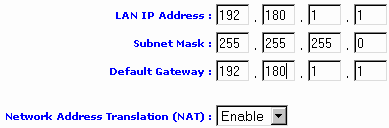
NAT must always be actived.
Other configuration make it possible to modify the passwords and the internal hour of the router. This last option is used by the function firewall.
2.4. Other parameter settings
Other parameter settings make it possible to use the router out of DHCP server (cf modem), to configure the router in DMZ (zone demilitarized with 2 routers).....
2.5. Firewall integrated hardware.
I will not return too much in the details since this one is specific to this apparatus, only the basic configurations.
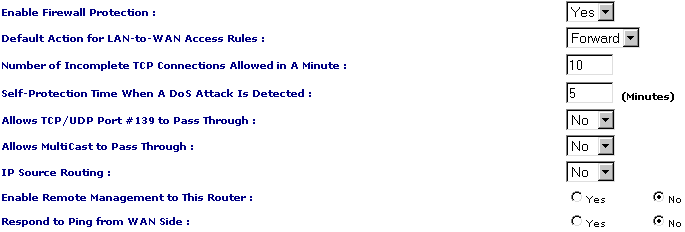
Inevitably, you allow the firewall protection. By default, you leave (forward) connections (internal network) LAN to the Wan (Internet). Otherwise, it is difficult in case of blockage which port is blocked.
The following setting will block incomplete TCP/IP connections from a certain number per minute (one is never too careful).
DoS (Denied of Service) attacks are massive attacks of incomplete frames on a given Internet address. The target attempts to reconstruct messages less than 64-bit and finally "collapses" under the workload.
Port 139 is used in NetBios by sharing the resources in Windows networks (with 137 and 138). To avoid sharing resources (hard disk and directories via Internet): No.
Enable remote management... to configure the router via INTERNET, disreputable, only in limited times.
The last command not to respond to the pings from the Internet (scanning of addresses, DOS Ping command).
Other commands allow to prohibit ranges of addresses or ports from the Lan to the Internet, and vis versa.
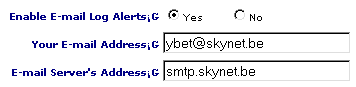
The next part to send mail to an address given if there is an attack or even in the lowest case to send by mail the LOG file.
2.6. Ports TCP and UDP to be opened on the firewall
In the parameter setting of this type of firewall, you can block all ports TCP and UDP and open only some of them.
2.7. The parameter setting on the PC.
Once the parameter setting carried out on the various apparatuses, remains to connect the installation. The installation is done in two parts, the parameter setting of the internal connection network and the parameter setting of connection Internet.
2.8. The parameter setting network and connection Internet.
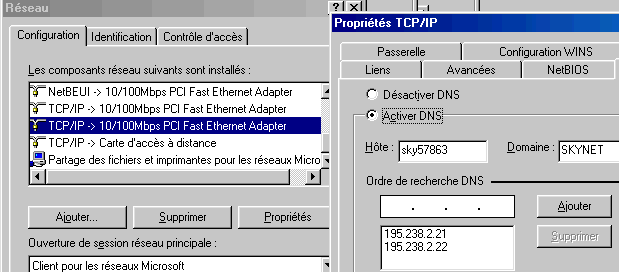
As for all connections Internet, protocol TCP/IP must be established on your chart network. Let us take again the parameters of configurations of each PC and select the chart network which will be connected (even via switch or HUB) on the router.
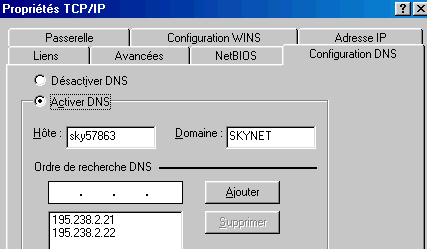
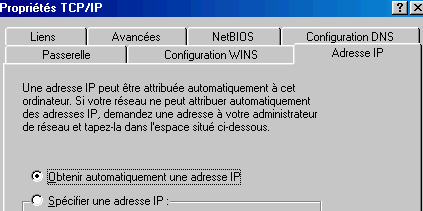
By posting properties TCP/IP of this chart network, one obtains the following window
The IP address tab to leave the address automatic (DHCP), or specify it. In the case of an automatic address IP configuration of the stations is automated. On the other hand, specifying an address has several advantages. First, this allows to find via its unique address what PC attempts to illegally connections. Secondly, playing on the firewall, can use TCP/IP and deny that some PC (via their IP address) connect on the INTERNET. For example, can allow the addresses 192.168.1.1 to 192.168.1.100 to connect, but not addresses 192.168.1.101 to 192.168.1.255. The subnet mask must always be set in 255.255.255.0. In the case of sharing with a PC running Microsoft Windows XP, it is almost the only possible connection method.
The Wins Configuration tab is irrelevant here. Are we at the gateway. It should be populated as the router, or in our case: 192.168.1.1. The connection works usually but this facilitates the connection.
The DNS configuration is not required but many connections don't work without. By habit, I insert it. It must be identical to that established in the router (otherwise Internet Explorer does not work). The host name and domain is not important but should be populated on Windows 98. The settings below are those of Skynet: first enter the primary DNS and then the secondary DNS.
After having to start again the PC (at least out of Windows 98), it any more but does not remain to parameterize the connection Internet for this division of connection ADSL by router.
17.4.2. Parameter setting of connection Internet.
To start Internet To explore. If it does not detect connection, to stop the attempt. In small the Tools, select "Options Internet". In the Connections parameters, click on the Configure button.
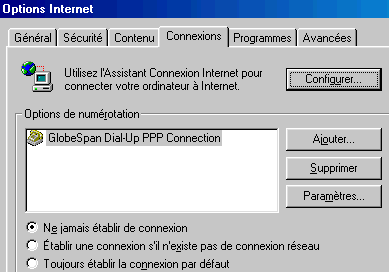
Notch the box "I want to manually configure my connection or by using a local area network" LAN ". Then "By using a local area network. Leave at this stage the proxy automatically. If your transport is already configured, you do not need more to configure it.
In the same , click on the button "Lan Parameters".

To use the proxy your supplier of access (here Skynet), notch the corresponding box and type the address provided by the FAI. In this case, if you use specific connections (the banking software ISABEL for example) or wish to have access to the configuration of the router starting from this PC, you must notch the box "not to use a server proxy for the local addresses and click on the button" Advanced ".
In the exceptions, type address IP of the router and the various desired exceptions. Once these modifications accepted, your connection functions automatically.
Some precautions nevertheless, strip the box "Check the messages every 30 minutes" in the parameters of your transport. Indeed, as the communication towards Internet is transparent, any program can be connected on Internet when he wants. With this option, connection remains permanently open what can cause risks of safety (even if the firewall protects a broad part of the communications, better is worth to remain careful).
4. Some example of the life of a connection Internet
Here some examples of file LOG of the firewall hardware (with address nonpermanent Wan TCP/IP), a digest of different protected systems.
The last address corresponds to the address of the PC of the internal network at the time of connection. All the lines are not inevitably attempts at intrusion via Internet, one finds ports official IANA (but nothing says that it is not a question of another application, of the typical ports with a Trojan, ports used but closed (of type ICQ, MSN messenger...), ICMP attack of no importance (a ping)... Certain orders test on the router, others directly on the PC (addresses of the type 192.168.X.X). The messages come as much in TCP as in UDP
|
FC-CLI |
1371 |
TCP |
Fujitsu Config Protocol |
IANA official port or? |
Kill May 07 07:58:44 2002 - policy rule - TCP [ wan, 213.36.127.59, 192.168.1.152:1371 ] - [ discard ]
A ping, there is which has fun.
Kill May 07 10:37:42 2002 - ICMP
attack - ICMP [ wan, 213.36.100.179, 217.136.190.170:0 ] -
[ discard ]
Kill May 07 10:37:45 2002 - ICMP attack - ICMP [ wan,
213.36.100.179, 217.136.190.170:0 ] -
[ discard ]
From a PC, always the same one. As the attempts at exit occurred more, rather an application which a Trojan (is not necessary to be paranoiac but lucid)
|
6667 |
TCP |
Trinity |
Trojan |
||
|
6667 |
TCP |
WinSatan |
Trojan |
||
|
6667 |
TCP |
Schedule Agent |
Trojan |
||
|
ircd |
6667 |
TCP |
Internet Relay Chat |
IANA |
|
|
ircd |
6667 |
UDP |
Internet Relay Chat |
IANA |
|
|
ircu |
6667 |
TCP |
IRCU |
IANA |
|
|
ircu |
6667 |
UDP |
IRCU |
IANA |
Kill DEC 17 18:27:40 2002 - policy rule - TCP [ lan,
192.168.1.97, 213.177.65.17:6667 ] -
[ discard ]
Kill DEC 17 18:27:42 2002 - policy rule - TCP [ lan,
192.168.1.97, 213.177.65.17:6667 ] -
[ discard ]
...
Plays coming from outside
Kill DEC 17 18:08:08 2002 - policy rule - UDP [ wan,
80.200.150.123, 217.136.155.190:27015] -[discard
]
Why not test with PC anywhere
|
pcanywherestat |
5632 |
TCP |
IANA |
|
|
pcanywherestat |
5632 |
UDP |
IANA |
Kill DEC 17 23:11:02 2002 - policy rule - UDP [wan,
217.136.191.74, 217.136.155.190:5632] - [discard]
Unknown but precisely, not official.
Wed DEC 18 13:44:57 2002 - policy rule - TCP [ wan,
193.201.103.100, 192.168.1.27:2193 ] - [ discard ]
Wed DEC 18 20:42:37 2002 - policy rule - TCP [ wan, 80.200.248.200, 192.168.1.7:1223] - [ discard ]
Wed DEC 18 20:42:37 2002 - policy rule - TCP [ wan, 80.200.248.201, 192.168.1.68:1233] - [ discard ]
Fri DEC 20 15:42:00
2002 - policy rule - TCP [ wan, 193.201.103.91,
192.168.1.152:3524 ]
- [ discard ]
Official IANA
Wed DEC 18 14:06:11
2002 - policy rule - TCP [ wan, 80.200.248.200,
192.168.1.4:2845]
- [ discard ]
Wed DEC 18 14:36:18 2002 - policy rule - TCP [ wan,
80.200.248.200, 192.168.1.4:2848] - [ discard ]
Wed DEC 18 15:06:29 2002 - policy rule - TCP [ wan, 80.200.248.200, 192.168.1.4:2851] - [ discard ]
Official IANA for software of control remote of server http://www.folio.com (not sure that it is logical) and always on the same PC in Win2000
Fri DEC 20 16:13:48 2002 - policy rule - TCP [ wan, 80.200.248.200, 192.168.1.27:2242] - [ discard ]
Fri DEC 20 16:28:48 2002 - policy rule - TCP [ wan, 80.200.248.200, 192.168.1.27:2242] - [ discard ]
|
31789 |
UDP |
Hack' a' Tack |
Trojan |
Wed DEC 18 14:40:20 2002 - policy rule - UDP [wan, 217.136.26.127, 217.136.155.190:31789] - [discard ]
Thu DEC 19 01:35:59
2002 - policy rule - UDP [wan,
80.247.133.42, 80.200.156.74:31789] -
[discard]
Thu DEC 19 17:47:39 2002 - policy rule - TCP
[wan, 80.247.133.42, 80.200.156.74:31789] -
[discard]
http://www.phonefree.com
(an employee which has fun?)
Fri DEC 20 16:20:53 2002 - policy rule - TCP [wan, 207.46.106.183,
192.168.1.119:1035] -
[ discard ]
1812,
an official port or CuSeeMe (a video conference software) but which works
whereas nobody is in the company and coming from different addresses sources (Wan).
Sat DEC 21 01:51:00 2002 - policy rule - UDP [ wan,
195.250.78.242, 217.136.154.118:1812] -
[discard]
Sat DEC 21 01:55:26 2002 - policy rule - UDP [ wan,
218.1.36.50, 217.136.154.118:1812] -
[ discard ]
Sat DEC 21 01:57:36 2002 - policy rule - UDP [ wan,
202.54.74.81, 217.136.154.118:1812] -
[ discard ]
A data-processing attack definitely more serious
Sat DEC 21 20:12:49
2002 - tear drop attack - any
[ wan, 192.9.200.32, 217.136.155.185:0] -
[discard]
A TEAR DROP consists in sending information (called OOB = Out Of Band) on wearing of Windows (all poured 32 bits). Information sent is packets TCP which overlaps. When the computer victim receives these packets, it tries to rebuild them. Not arriving there, that causes a planting, a blue screen causing an error of general protection and you have of another choice only to start again the computer. The tear drop, the new tear and the boink (of the similar attacks) can also affect the systems Linux (lower than 2.0.32), mac and Unix.
For found a pretence of localization of the PC which tries the intrusion: tracert 202.54.74.81 for example if this PC is not him also equipped with a firewall
A last remark, the addresses network APIPA always start with 169.254 and have the following format: 169.254.X.X the addresses network LINKLOCAL are reserved for the private addresses and interns and cannot be used on the computers connected by the Division of connection Internet.
In relation:
- ADSL splitter: How to install ADSL filter on the telephone line
- Course: remote connection: Remote connection, communications and safety Internet equipments (Firewall and VPN)
- Course: Ethernet networks: Standards and types of Ethernet networks
- Course: Ethernet Concentrators: Hub, switch, routers...